Academics · Analytics · Teachers and academic administrators
Reviewing academic analytics
Choose the correct class and reporting scope, then use performance reports to plan learner support.
Updated 8 October 2026
Open an analytics report
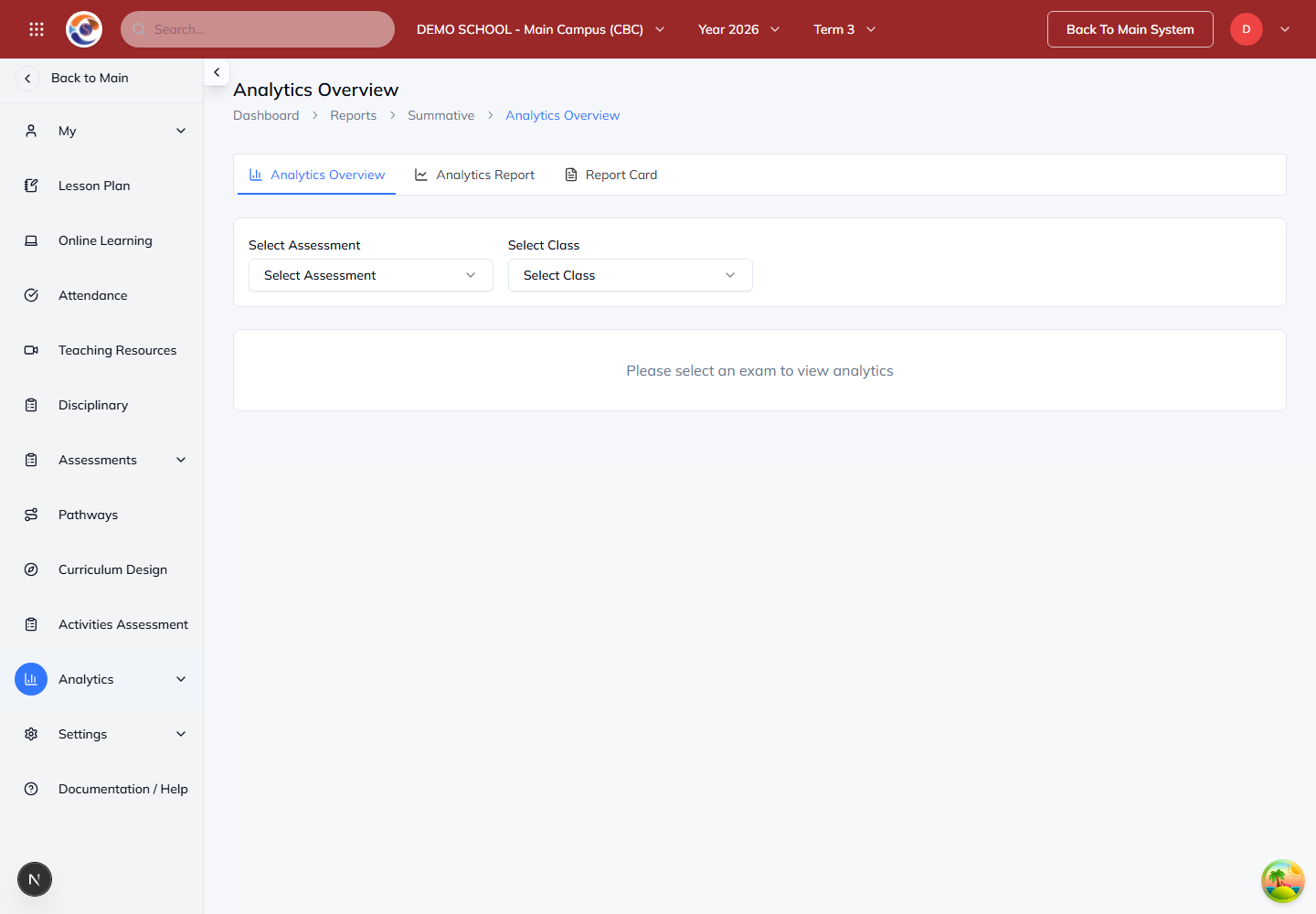
Where to find it: Academics → Analytics → Summative or Formative
- Choose the assessment report appropriate to your review.
- Confirm the campus, academic year, term and class.
- Choose the available assessment and subject filters, then load the report.
Note: Reports depend on the assessment records and access available for your school.
Read and compare results
Where to find it: Selected analytics report
- Review the overall summary before examining a class, subject or learner in detail.
- Use the same reporting scope when comparing results. Check missing or incomplete marks before drawing conclusions.
- Identify areas that need follow-up and plan teaching or support based on the underlying assessment evidence.
Review learning participation
Where to find it: Academics → Online Learning → Analytics
- Open Analytics in LMS for learning activity and submission information.
- Set the available filters and review the period covered.
- Follow up incomplete activities alongside teacher feedback and the learner’s submitted work.
Note: Learning participation and assessment marks answer different questions. Review both when deciding the next learning steps.