Finance · Reports · Bursars, accounts staff and school leaders
Finding and using finance reports
Use the Reports Center to find reports, choose the correct scope and review the results.
Updated 8 October 2026
Find the right report
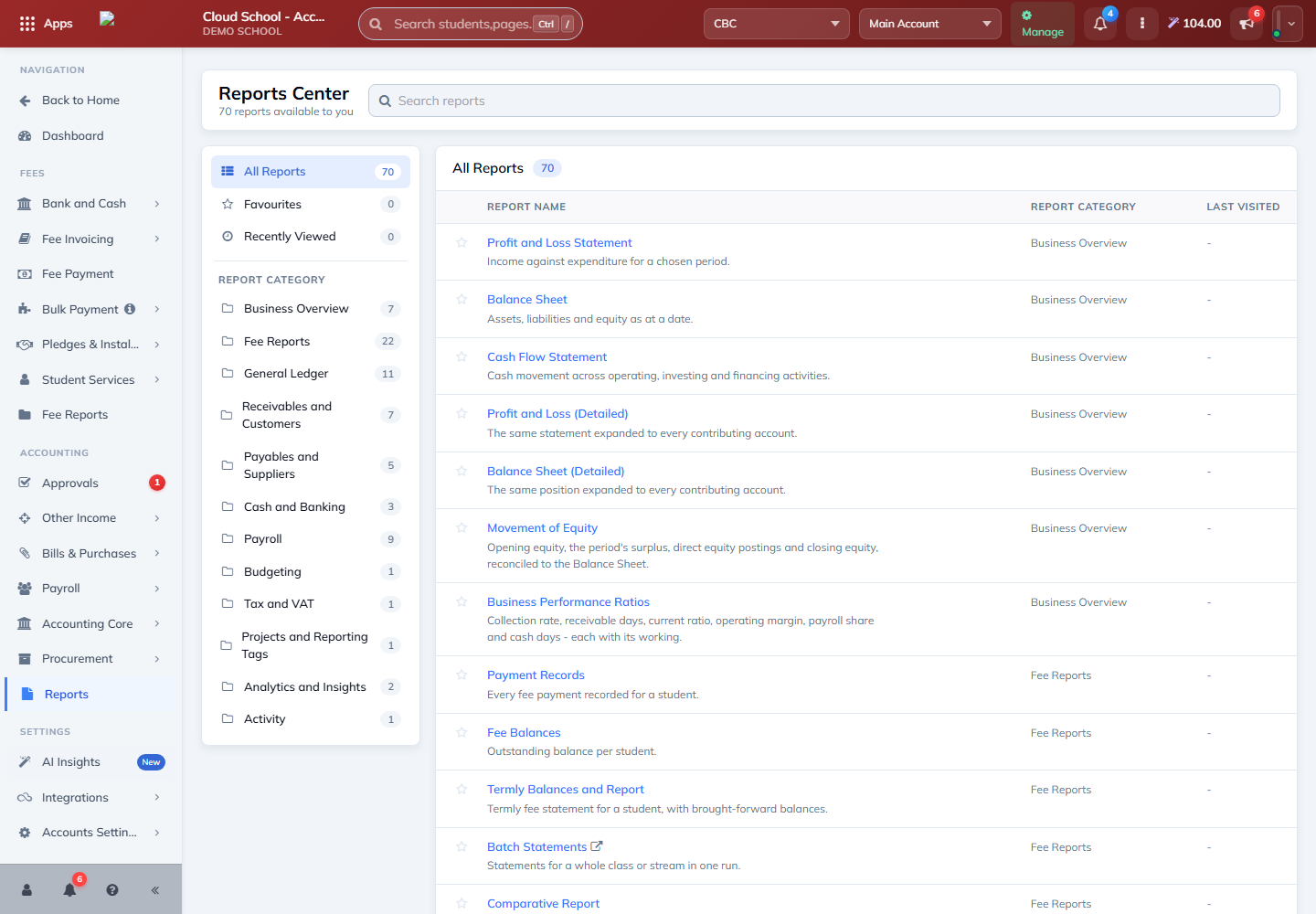
Where to find it: Reports → Overview
- Type part of the report name in Search reports, or choose a report category.
- Read the short description to check that the report answers your question.
- Open the report. Use the star beside a report to add it to Favourites when available.
Choose the scope and review results
Where to find it: Selected report → Filters
- Check the campus, reporting dates, academic year and term as appropriate for the report.
- Choose any class, account or other available filters, then load the report.
- Read the totals and open supporting detail where available. Use the report’s print or export option when you need a copy.
Note: Keep the same date range and campus when comparing reports. A balance as at one date and activity over a date range answer different questions.
Choose reports by the question you need to answer
Where to find it: Reports Center → Categories
- Use Fee Reports for fee balances, payment records, statements and fee comparisons.
- Use Business Overview for the Profit and Loss Statement, Balance Sheet and Cash Flow Statement.
- Use Receivables and Customers or Payables and Suppliers for amounts owed to the school or owed by the school.
- Use General Ledger for account movements and Activity for a record of user actions.
Review cost and tax information
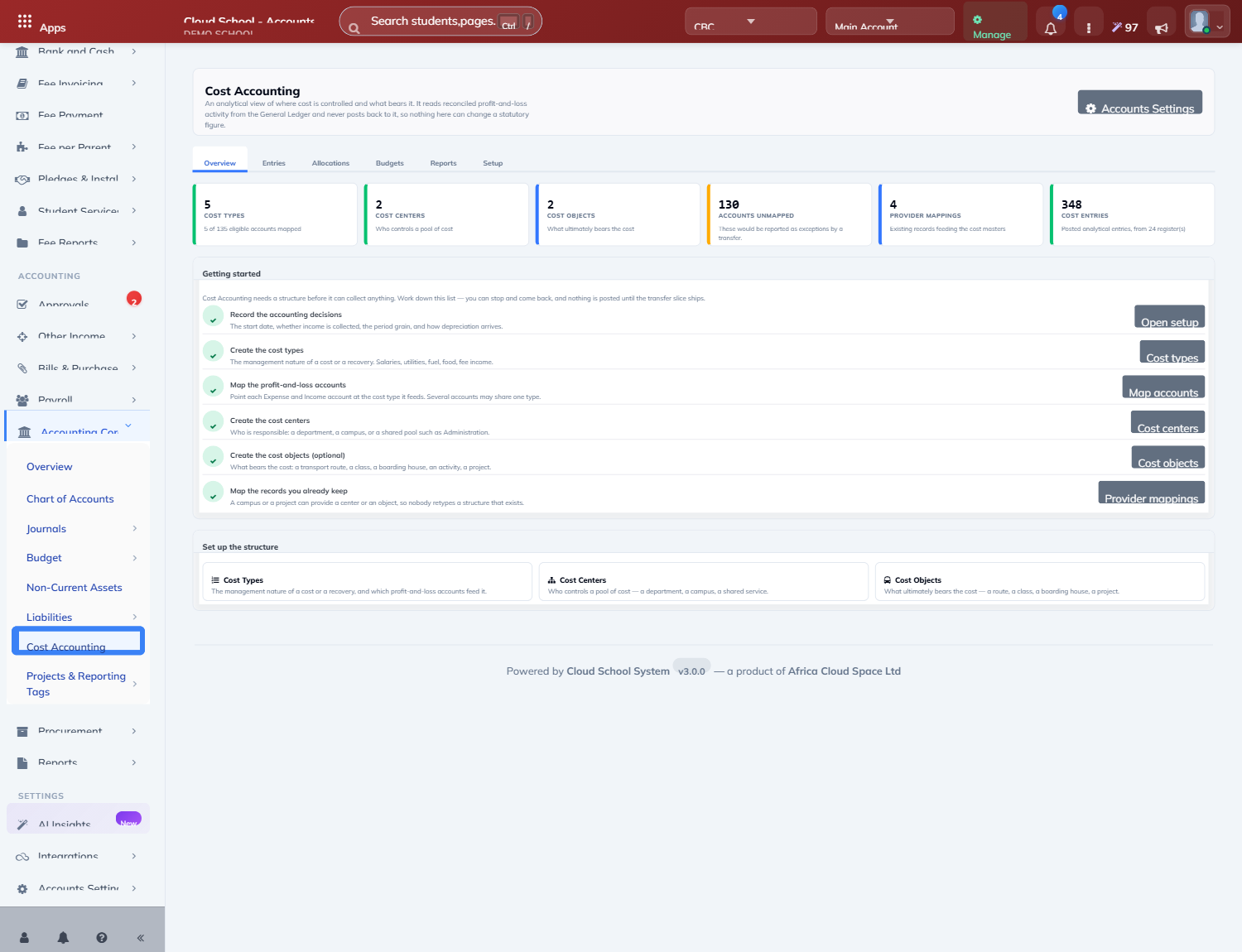
Where to find it: Cost Accounting; Reports → Tax and VAT
- Use Cost Accounting to review costs by the available school reporting dimensions.
- Use Tax and VAT for tax-related reports and filing information.
- Check the period and account selections before using a report for review or filing.
Note: Only authorised finance staff should change accounting or tax settings. Ask the person responsible for the school’s accounts when a reporting period or configuration is unclear.