Getting Started · School workspace · School staff and administrators
Getting started with CloudSchool
Sign in, choose the right campus and find the tools you use every day.
Updated 8 October 2026
Sign in to your school
Where to find it: School sign-in page → Administrators or Teacher’s Portal
- Enter the email address or mobile number registered with your school and select Next.
- Choose your school campus when prompted. Enter your password and select Login.
- Check the school and campus shown at the top before opening student records or reports.
Note: Ask your school administrator to check your account if the expected campus is missing. Use Forgot Password if you need to reset your password.
Find a task from the dashboard
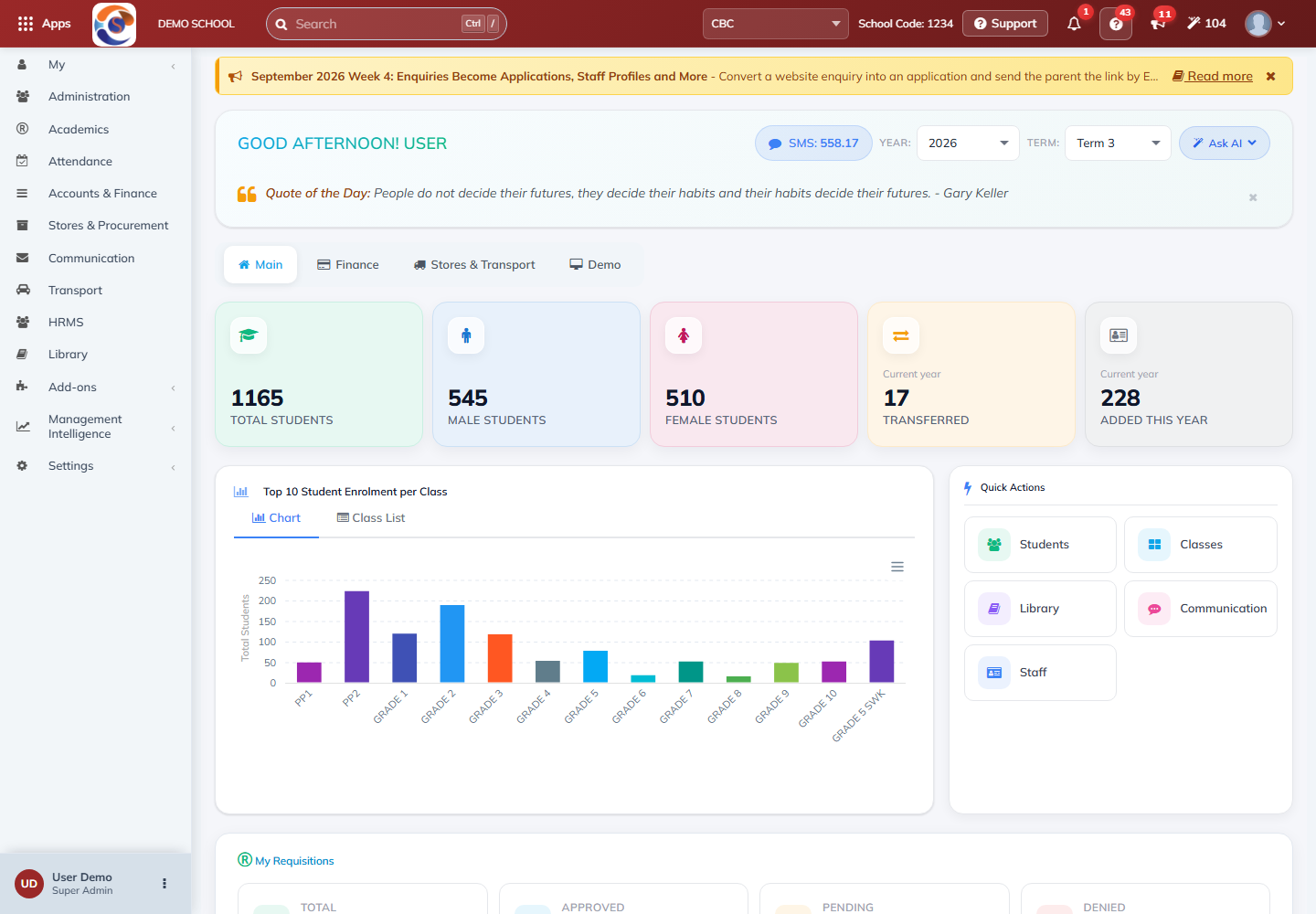
Where to find it: Main dashboard
- Choose the year and term relevant to your task.
- Open a menu such as Administration, Academics, Attendance or Communication.
- Use the search bar to find a student or page, or choose a dashboard Quick Action.
Open Academics or Finance
Where to find it: School menu → Academics or Accounts & Finance
- Choose Academics, then Lesson Plans, Online Learning, Analytics or Discipline for your task.
- Choose Accounts & Finance for invoices, payments and finance reports.
- Check the school, campus, year and term before continuing.
Note: The options you see depend on your role and the services enabled for your school. If a menu is missing, ask your school administrator.